

Resources » How To Edit PDFs »
Do you need to change the order of pages in a PDF file? Whether you have to edit the order of pages, reorder pages or otherwise simply change the order of your PDF, this click-and-drag tool will make it easy for you.
Change the Order of PDF Pages
The size of a PDF can range from just a couple of pages to an entire e-book with hundreds of pages. When creating a PDF, it’s easy to accidentally place pages out of order or need to rearrange them. The problem is, once the PDF is created, it’s difficult to edit page order when you’re using a PDF reader. To rearrange pages, you’ll need an editing tool.
PDF.Live provides an online editor to change and reorder PDF pages. With the editor, it’s as easy as dragging and dropping the pages in the order of your choice. In this guide, we’ll show you how to rearrange PDF pages however you’d like.
Steps for Reordering Pages in a PDF File
To get started changing page order, you’ll need to convert your PDF into an editable PDF. Simply drag and drop the PDF into the editor and select Edit PDF. This will convert the PDF to an editable PDF and open the PDF.Live online editor, which functions entirely in your browser.
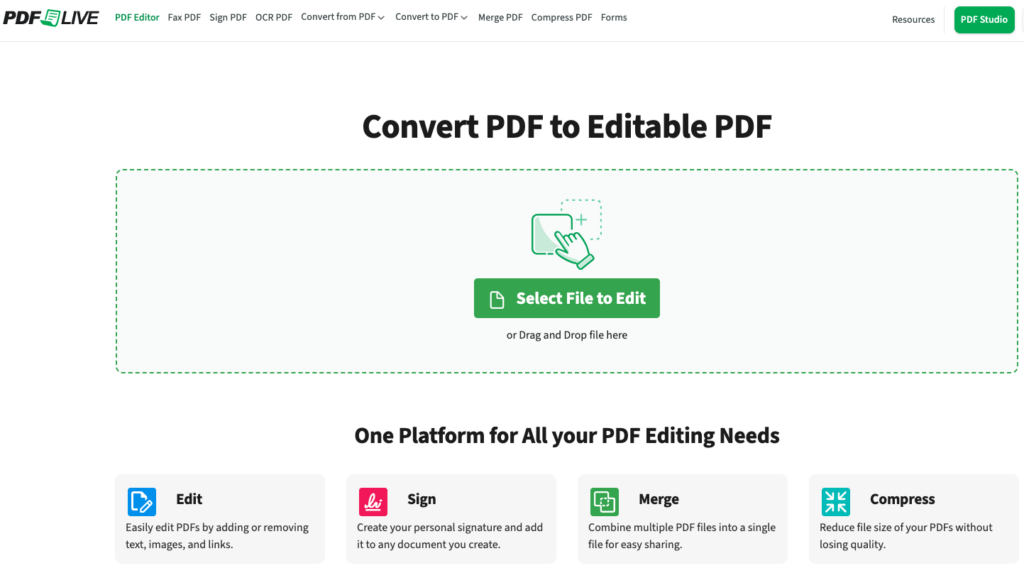
The PDF live editor has a lot of powerful editing options for PDFs. But today we’ll be focusing on the Manage Pages option located on the left side of the PDF.Live editor.
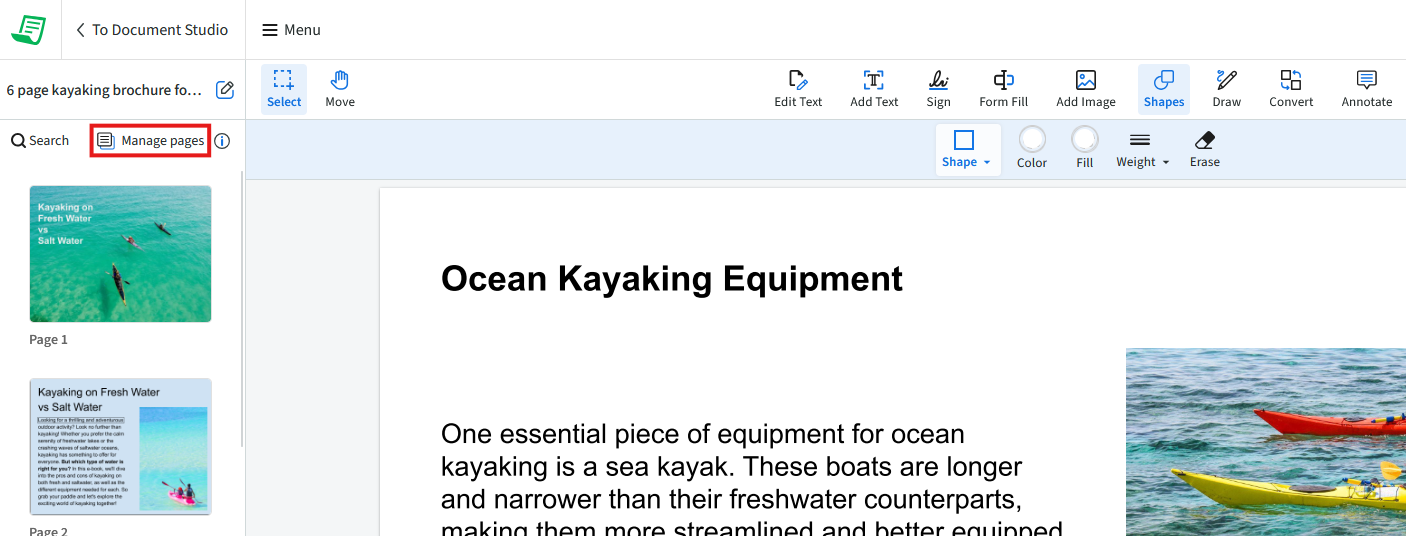
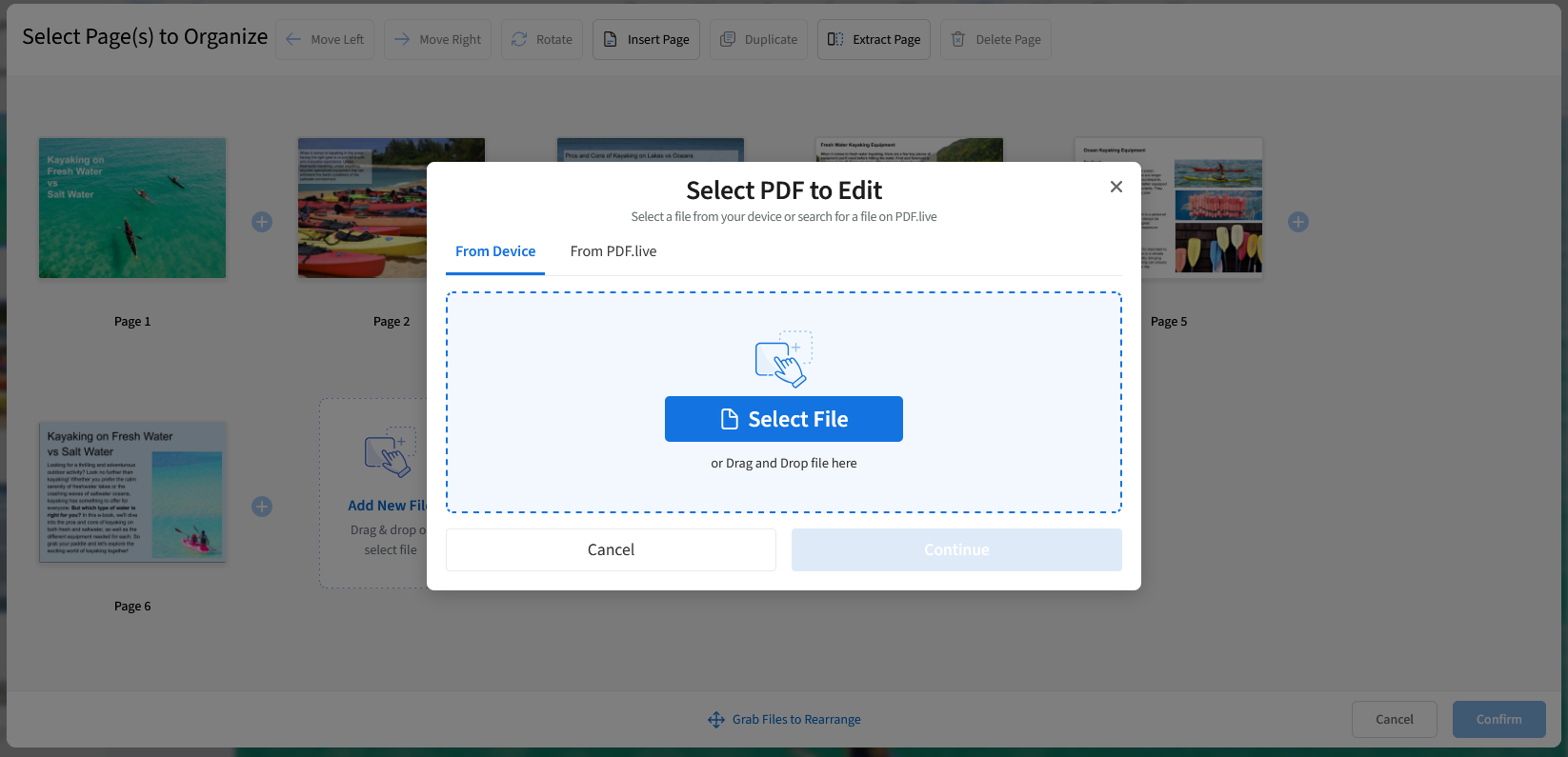
This will open the Thumbnail page view. This allows you to quickly overview and scroll through the different pages of your PDF. You’ll see smaller thumbnail versions of your PDF pages to get a sense of the content contained on each page. There are also several different tools available for organizing, removing, or inserting new pages.
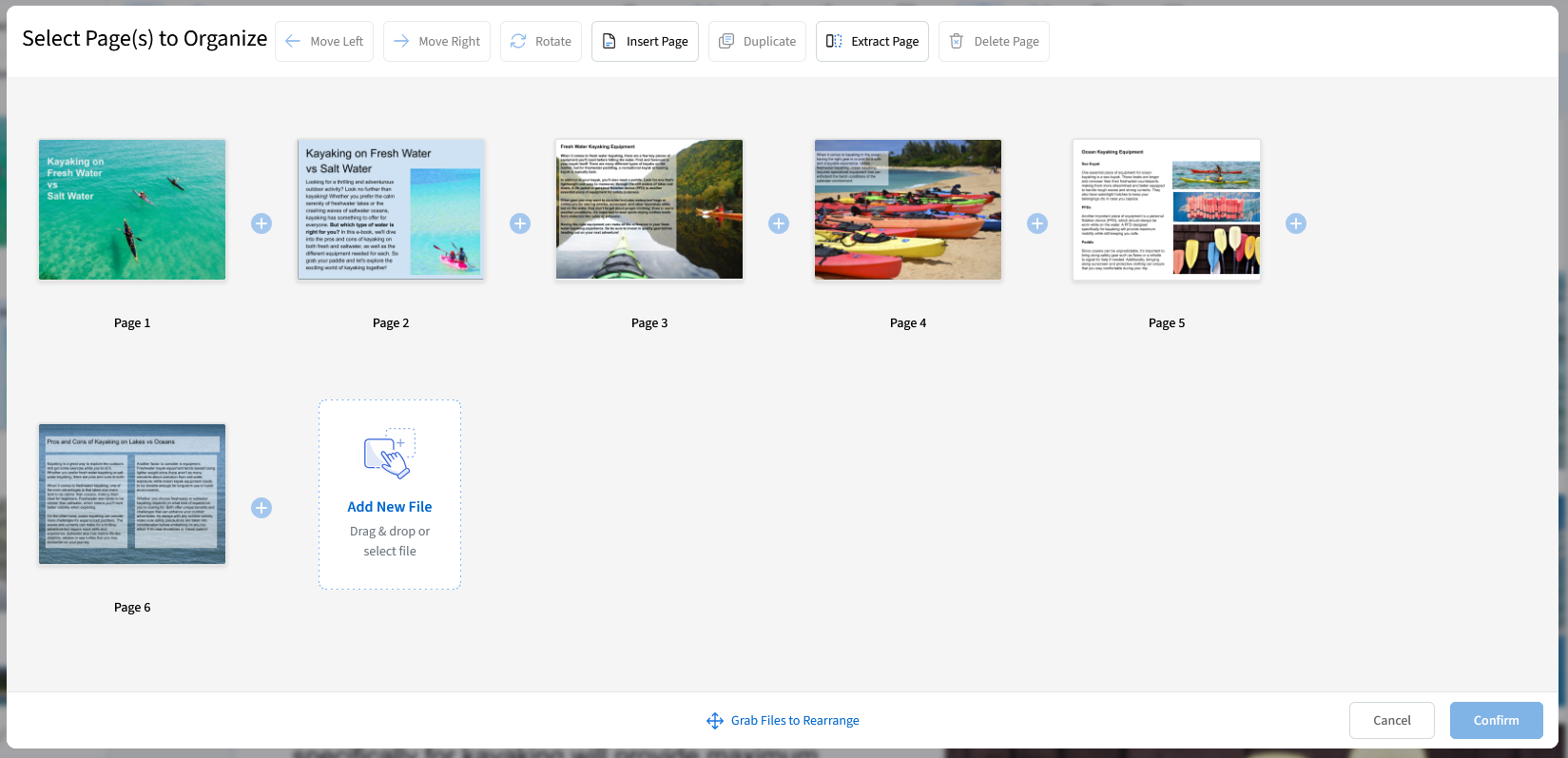
This thumbnail view also allows you to rearrange the order of a PDF’s pages. Simply click and drag the page to wherever you’d like it to be. You will have to release your mouse click when a blue vertical line appears, indicating which page you’re going to put the page you’ve select din front of. Once you’ve dragged the page to the new location, you’ll see the new order reflected in the thumbnail viewer.
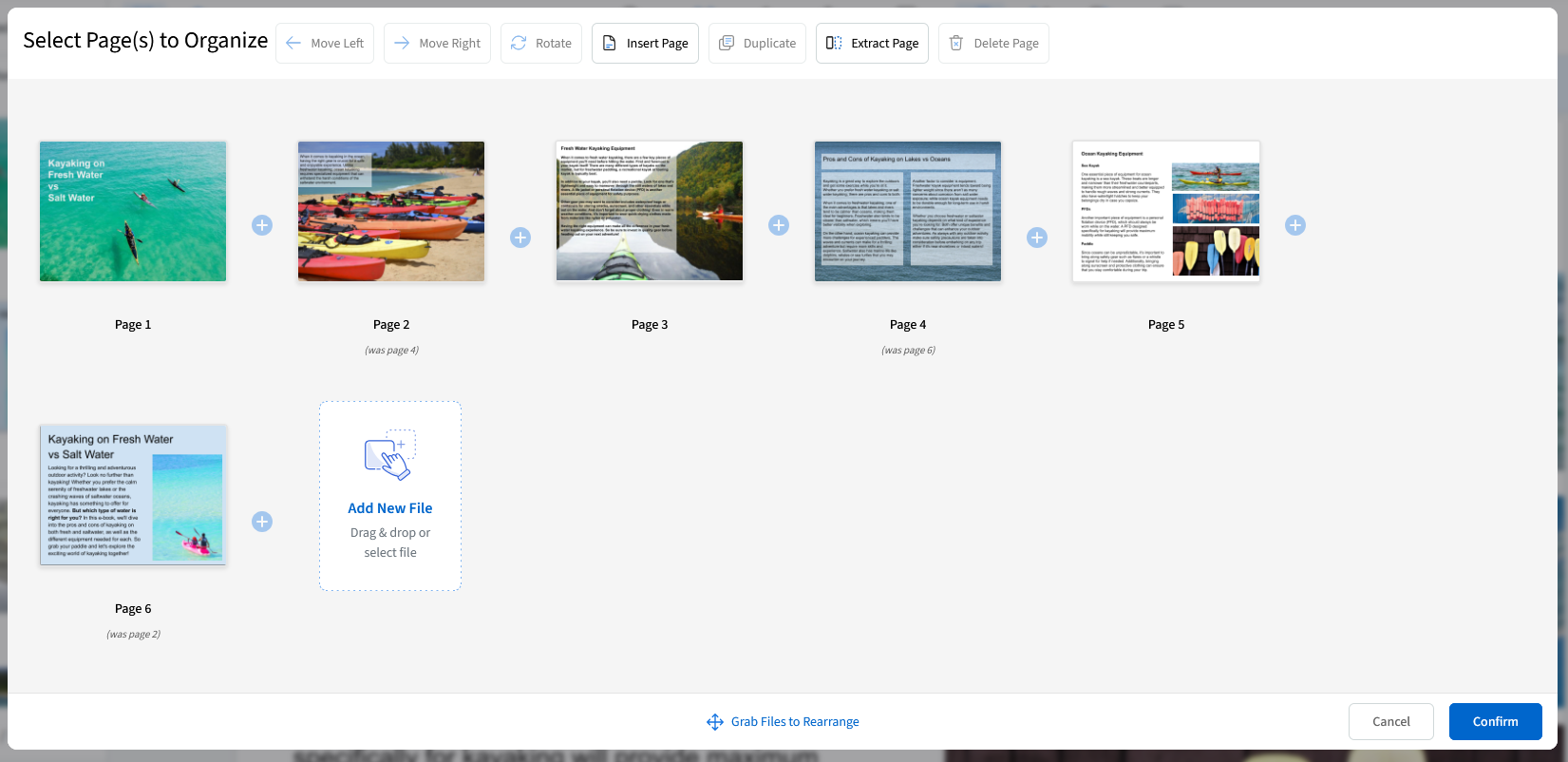
In the above example, we’ve rearranged the order of this 6 page brochure by clicking and dragging the pages around. Once you’ve got an order you’re happy with, select Confirm. The pages will be rearranged.
Once you have all the pages where you’d like them to be, you’ll need to download the PDF again. The downloaded version of the PDF will contain all the edits that you’ve made.
If you have a lot of pages in your PDF, you may need to scroll up or down on the page organization tool to see all of the pages in your document.
To combine more than one PDF, use the Merge function that combines two or more different PDFs. To learn more about doing this, we recommend checking out the Extract-Split-Separate a Page from a PDF article that details how to extract specific pages from a different PDF and then place them in a new PDF.