

Resources » How to Convert PDFs »
One way to digitally present information to an audience is with a slideshow. With a slideshow, you can full-screen a document on a projector and advance the pages forward with the click of a button. Google Slides and PowerPoint are two examples of apps that can be used to create and present slideshows.
PDFs are among the best file formats to share information online. They’re easy to compress and won’t lose formatting settings between devices. In fact, PDFs can be a great way to share presentations between devices as they can be converted to and from PPT files.
There is one big differentiation, or limitation, between using a PDF versus a PowerPoint, Google, or similar presentation file: PDFs are flat files that don’t easily accommodate animations. So, if you want to dazzle your audience with animated text, GIFs or videos, you’ll be better off converting your PDF into a PPT to add the animations.
So how do you turn a PDF into a slideshow? PDF.Live offers PDF to PowerPoint conversion entirely online.
Convert PDF to PowerPoint
- Go to the PDF.Live Studio and select the Convert to PPT option.
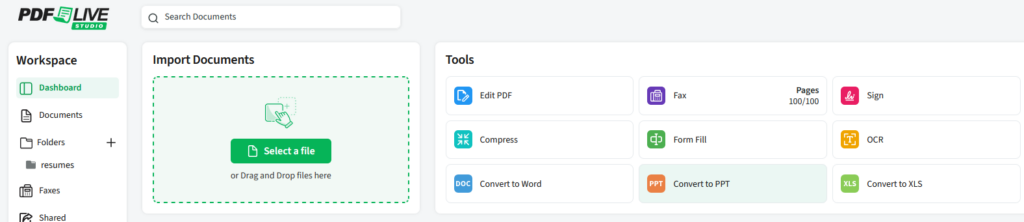
Either drag and drop your file into the converter or select the file wherever it’s located on your desktop or device. You can also select a PDF that you’ve already uploaded to the PDF.Live Studio.
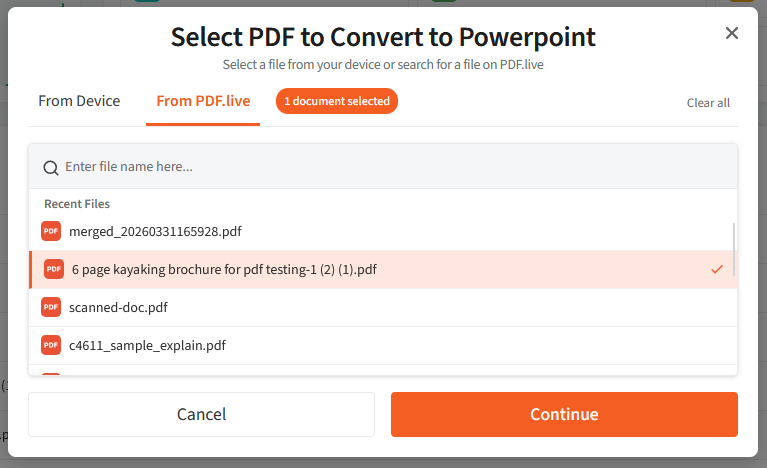
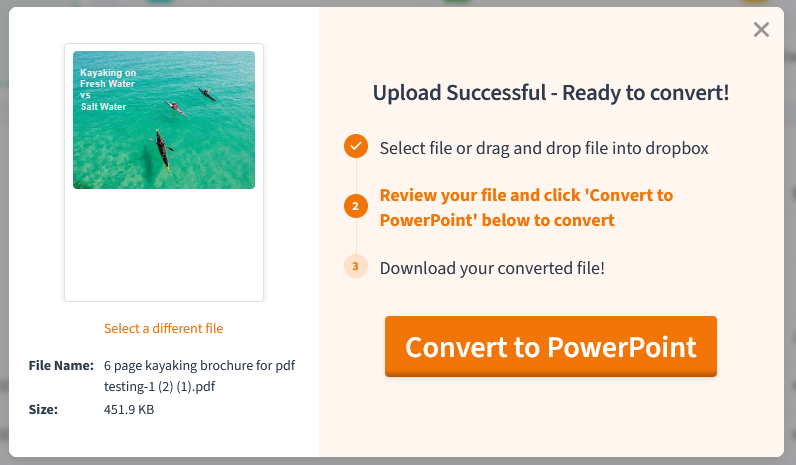
- Click Convert to PowerPoint.
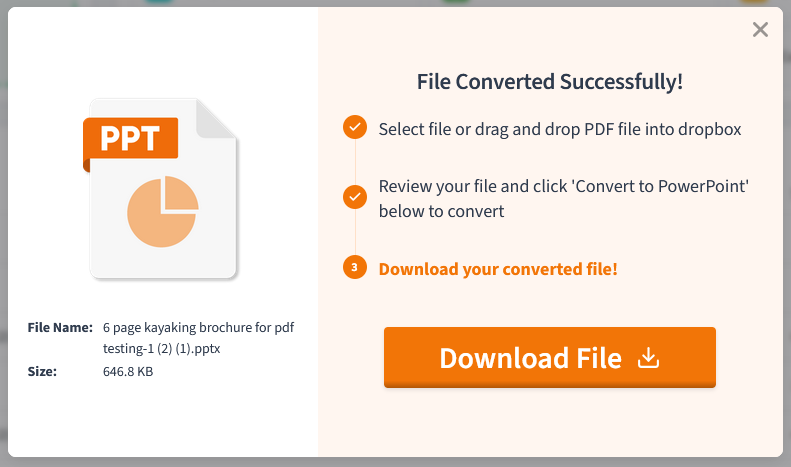
Once your PDF is converted to a PPT, select Download File.
- Open your converted PDF on the slideshow editor of your choice.
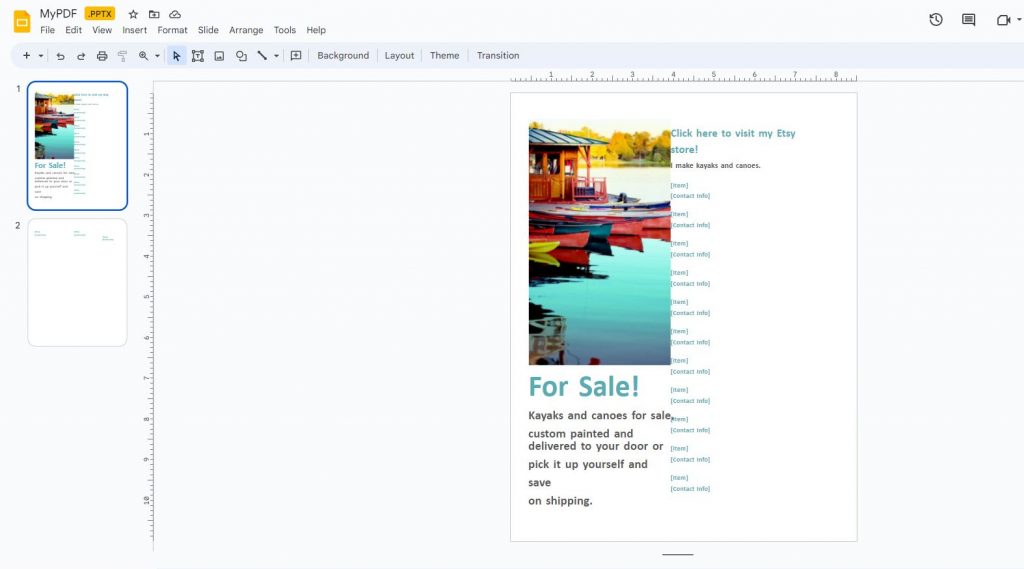
From here, you can open your converted PDF on Microsoft Powerpoint, Google Slides, or another presentation program to test if your PDF was converted properly. Simply open the program and select the PPT file you downloaded from PDF.Live. If you’re using Google Slides, you will need to upload the downloaded PPT to your Google Drive account.
From here, you can make further edits to it as you would any other PowerPoint. You can also test presenting the new slideshow to see how it will look when on the big screen. PDF.Live also offers a PPT to PDF converter, if you want to eventually turn your presentation back into a PDF. You can, for example, convert a PDF to a slideshow, make edits, and then convert it back into a PDF! PDF.Live has a lot of powerful tools you can utilize to make it as easy as possible to work with PDFs.