

Resources » How To Edit PDFs »
How Can I Write on a PDF?
This tutorial shows you how you can write on a PDF online, if you’d prefer to write on a PDF form, for example, rather than type on it. You can also use the drawing tool and your mouse to write comments and shapes online. Here’s how!
What is a PDF writer? A PDF writer is a software application or tool that creates, edits, converts, and annotates portable document format (PDF) files.
When editing a paper, nothing’s quite the same as being able to take out a red pen or highlighter and mark up the pages. Or is it? PDF.Live’s online edit tool allows you to write or draw all over your PDF online. This allows you to make more nuanced comments and edits while saving the paper required to print out a physical copy.
If you’re looking to sign a PDF, skip over to this page, where we show you how to upload and add your signature to a PDF online.
So, how do you write on a PDF? This article will be all about drawing and marking up a PDF using PDF.Live’s online editor. This editor functions entirely in your browser, with no additional downloads!
Write on a PDF Online
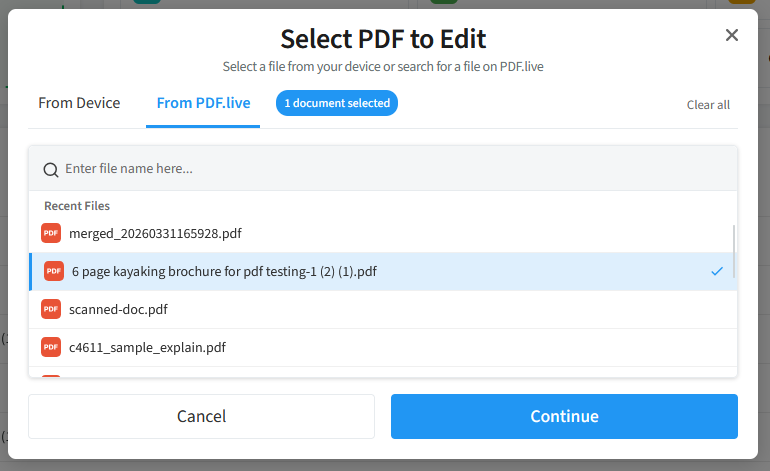
Once you locate the PDF on your computer, head to the PDF.Live Studio to edit the PDF online.

You’ll need to drag and drop your PDF into the editor or click Select File and navigate to where the PDF is stored on your computer. Or, find a PDF you’ve already uploaded to the PDF.Live studio. Once you’re ready to start, click Continue.
You’ll then be taken to the PDF.Live online editor. Here, you’ll find several functions for editing, annotating, and protecting PDFs. Feel free to familiarize yourself with the editor before moving forward, as there are a lot of great features!
To get started writing on a PDF, click the Draw option at the top of the PDF.Live editor’s toolbar.

Your cursor will be turned into a Plus sign. You can now draw on your PDF!
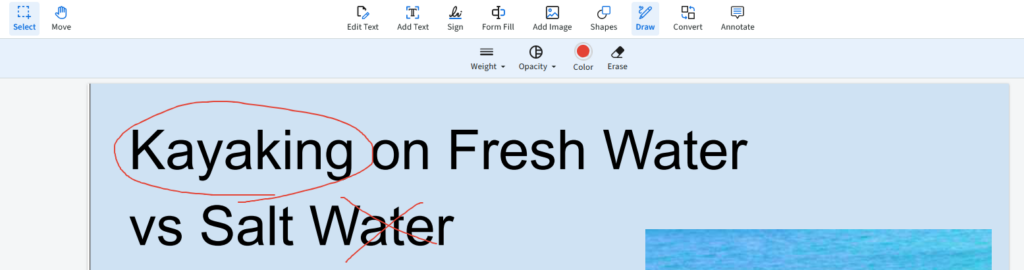
You’ll notice that, by default, the PDF.Live Free Hand tool lets you draw free-hand in red on your PDF. This may not be your preferred color! To change the style settings of your pen, click the Color option under the draw tab.
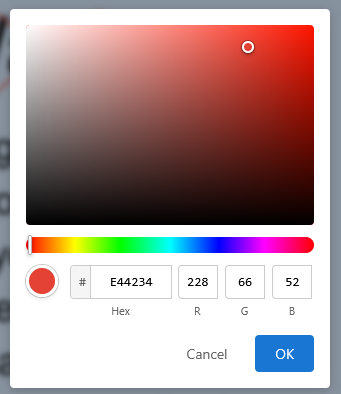
Here, you’ll be able to adjust the color, opacity, and stroke size of your free-hand tool. You can also adjust the Opacity and Weight of your pen.
Draw with multiple styles on the same PDF.
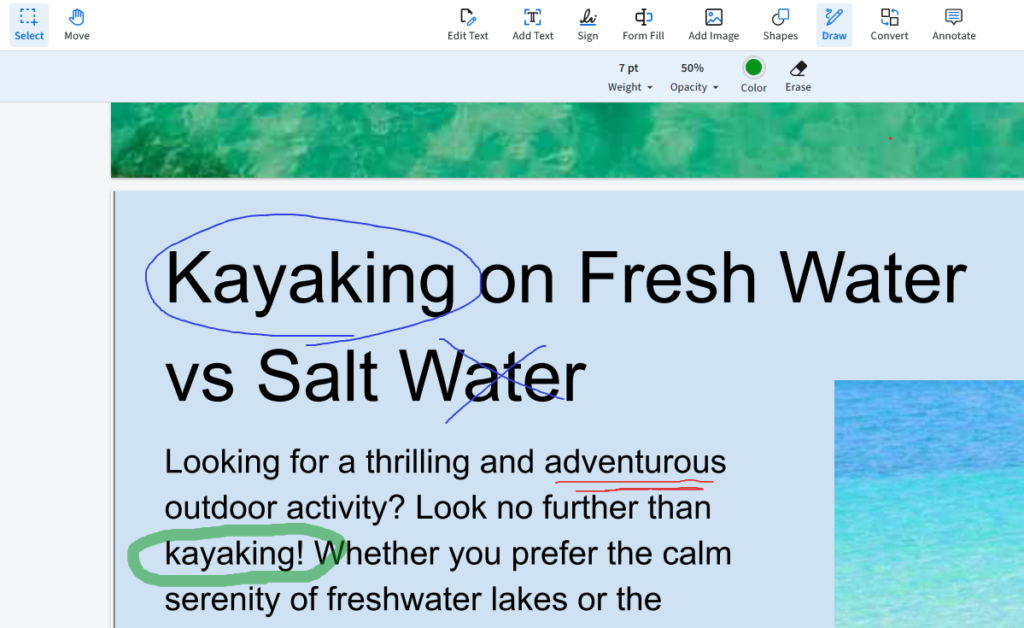
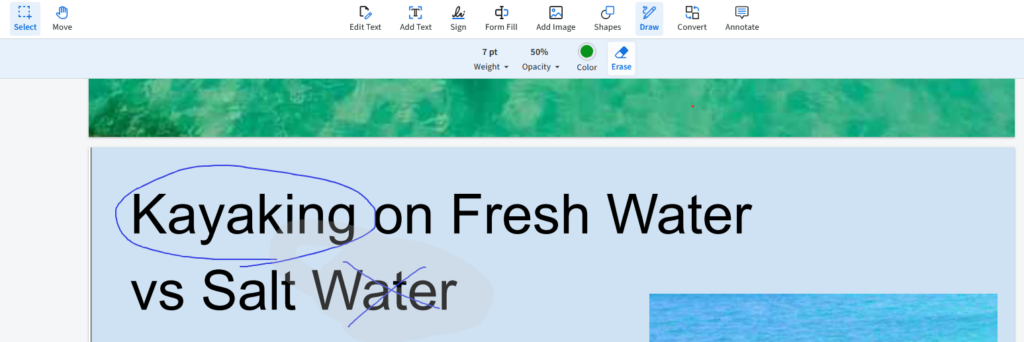
To erase a drawing that you’ve made on your PDF, simply click the Erase button under the Draw toolbar. Then, click drag the eraser over the part of your drawing that you want to remove.
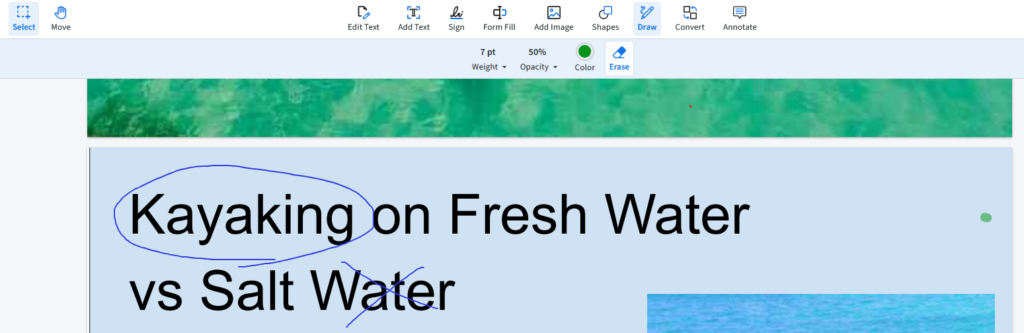
You will notice a slightly transparent circle appears where you click and drag. This signifies the area that will be erased.
With the PDF.Live editor you can also draw shapes on your PDFs! To do this, select the Shapes tab at the top of the toolbar. You’ll have the option to create rectangles, circles, and more.

With a shape option selected, click and drag on your PDF to create a new shape!
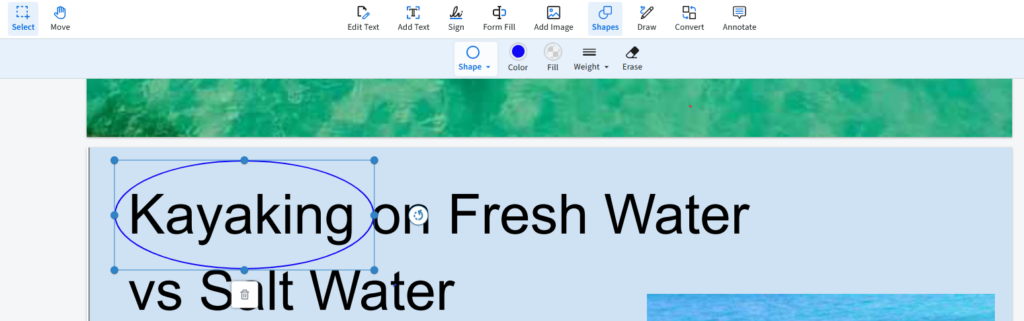
Once you’ve created a shape, click the blue circles around the outline of your shape to adjust the shape size and position. Click the Trashcan icon to delete a shape you’ve created.
You can also erase your shapes using the same eraser tool. The shapes tool functions identically to the free-hand tool within the editor, with the main difference being the preset shape you’re creating versus drawing “freehand”.
The draw and shape tools are just some of the many powerful functions that the PDF.Live online editor has for editing and marking up a document.