

Resources » How to Annotate PDFs »
This tutorial answers the following:
- How do you insert an arrow in a PDF?
- Can you explain how to draw a straight line in a PDF?
- How can I customize the look and position of an arrow or line I add to a PDF?
Draw a PDF Arrow or Line
If you’re annotating or editing a PDF, it’s often useful to be able to point to specific areas of text or images. Arrows or lines can help you make these more nuanced annotations or signifiers on a document.
Whatever your use case, inserting an arrow or line in a PDF has never been easier than with PDF.Live’s online editor. This editor has a lot of functions for drawing shapes and annotating documents. However, for the purposes of this tutorial, we’ll be focusing on how you can add arrows and lines to any PDF you’re working on.
- Upload your PDF to the PDF.Live Editor.
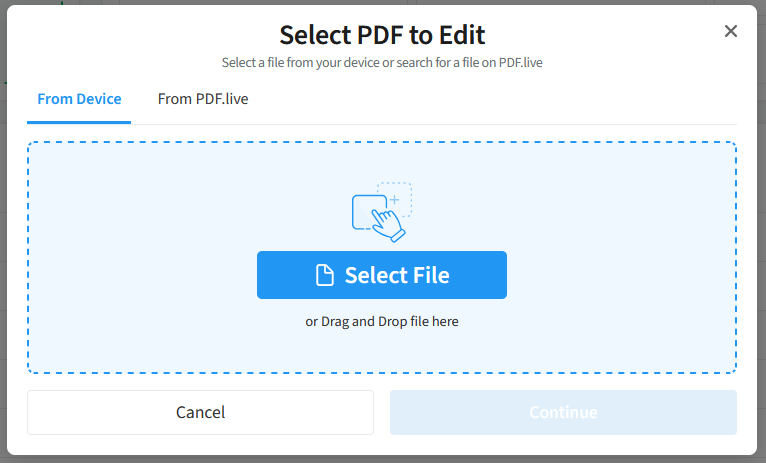
Simply drag and drop your PDF into the editor or click Select File to Edit and navigate to where your PDF is located on your computer. Once you’ve uploaded your PDF, click Edit PDF to open the PDF.Live editor and start editing your PDF.
- In the PDF.Live editor toolbar, select the Shapes tab.

PDF.Live’s many editing options are found on this toolbar.
3. For drawing arrows and lines, select the Shape dropdown and select the arrow.

Here you’ll see the many shapes and figures that PDF.Live’s editor allows you to make. You’ll notice that this toolbar also contains options to customize the style of your shape. Change the color of the shape, its weight, and whether it’s filled with color (this will not apply to arrows and lines).
4. Select the arrow or line icon and draw an arrow or line on your PDF.

Upon selecting Arrow or Line, your cursor will turn into a + sign, signifying that it’s in drawing mode. From here, you can click anywhere in your PDF to mark a starting point for your arrow. Then, hold down to click and drag your cursor to where you’d like the arrow to point to. Release your click when the arrow is pointing to the correct place. Remember: Where you release your left mouse button will be where the arrow is pointing.
To change the beginning, end, direction or length of the arrow, select the Move hand and click the arrow to begin adjusting it.
Adding Custom Arrows & Lines in PDFs
Once you’ve created a line or arrow, you can change its location by clicking it and dragging it anywhere that you want it to be located. You can rotate it by pressing the circular arrow to the right of the shape and dragging it. It will rotate around a fixed axis in the middle of the shape.
To change the color, shape, or other formatting settings, click your shape and then adjust the formatting settings on the toolbar at the top of the PDF.Live editor. Once you’ve made your changes, click off of your shape, and you’ll see them apply.

Here, you’ll be able to change how your arrows and lines appear. For example, you can choose a multitude of preset colors for your line. You can also make your own custom colors here. Alternatively, you can change the stroke size of the arrow or line.
To remove existing lines, either click the Trash Can icon next to the line or select the Erase option under Shapes and click and drag over the area you want to erase.
Try experimenting by drawing arrows and lines of your own on a PDF and changing around the formatting settings!