

Resources » How To Edit PDFs »
Tips for Using PDF Drawing & Markup Tools
You need to add lines to a PDF or markup a PDF by drawing lines, and you don’t know how? This online tool will help you draw on a PDF file freehand or by adding shapes.
PDFs are an excellent document format to use for receiving and sending information online. The PDF is particularly useful if you’re editing a document for someone and want to notate that changes need to be made to a document. For this reason, you may be wondering if you can draw on a PDF and how to do so. Drawing on a PDF may not be possible with some PDF readers.
To draw on a PDF, you’ll need to use a PDF editor. PDF.Live’s online editor lets you make edits entirely in your browser. You don’t need to download and install special software. We’ll show how you can draw, make lines, and otherwise mark up a PDF as you see fit entirely online using the PDF.Live editor.
Before you begin, you’ll need to convert your PDF to an editable PDF. This is very simple: Just drag and drop your PDF into the editor or click Select File to Edit and navigate to the PDF in your file browser.
Once you’ve uploaded your PDF, select Edit PDF to get started.
Tips for Using PDF Drawing Markup Tools
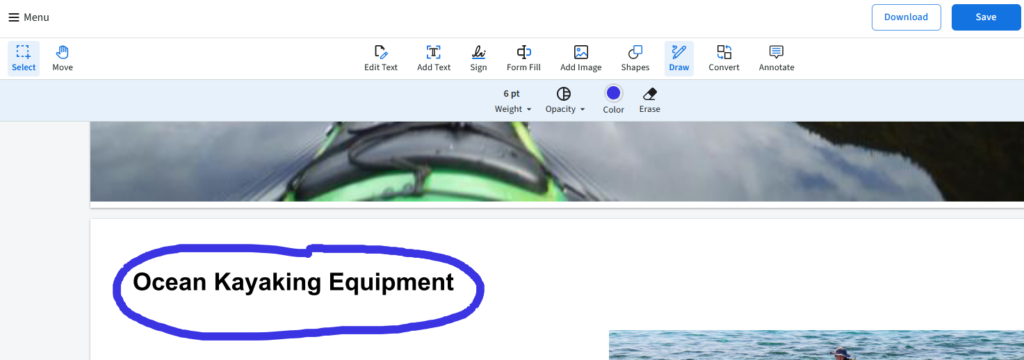
To draw on a PDF, in the PDF.Live toolbar, click the Draw option. This will turn your cursor into a + sign.

You’ll see a few different formatting options for your PDF drawing.
- The Weight changes the thickness of your drawing
- The Opacity affects how transparent your drawing is
- The Color changes the color of your drawing
- Erase removes existing drawings that you’ve made
This drawing won’t be constrained to straight lines or angles. It’s a free draw, which means it will take on whatever shape you draw.
For drawing Straight Lines, navigate to the Shapes tab on the toolbar and select the Line tool.
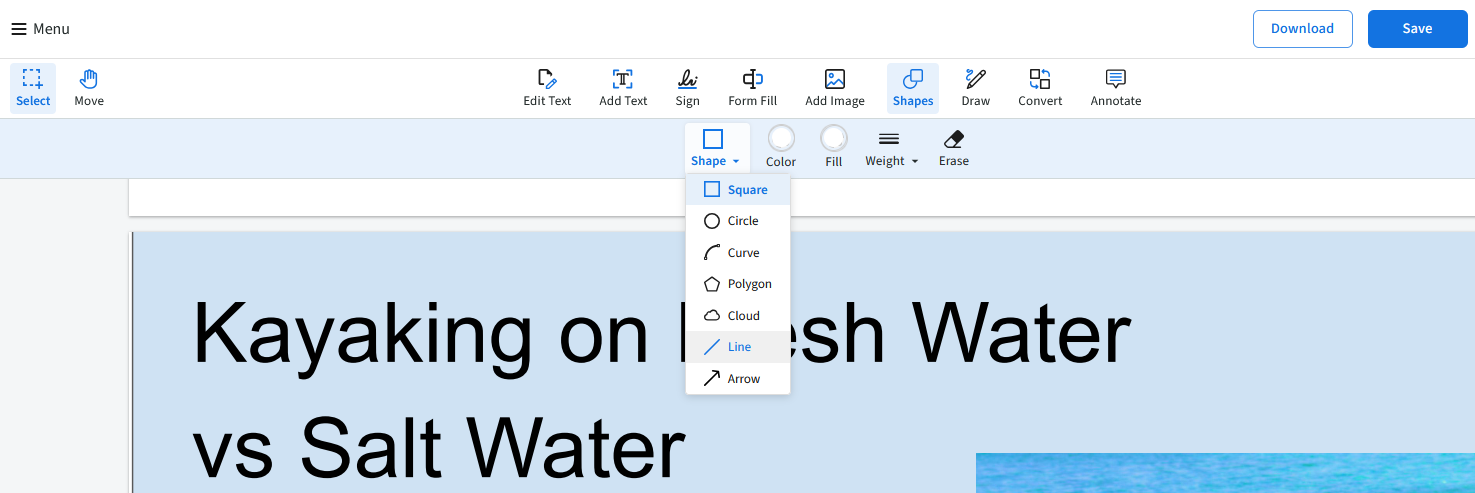
Line tool: Allows you to create a single straight line
Curve tool: Lets you make a curved line by clicking two points and then dragging to adjust the angle of the curve.
Upon selecting one of these options, you’ll then be prompted to draw a line on your PDF wherever you choose. You can also create shapes in this section by selecting the Square, Polygon, or Circle tools.
Much like the freehand draw tool, these tools change your cursor to a + sign, which lets you click and drag anywhere in your PDF to create a shape to your sizing specifications.
As with the draw tool, you can change the formatting settings of your shapes on the toolbar. You can also adjust the opacity of the shape if you want a transparent highlight effect. Or, you can remove the fill altogether for a hollow box to better call out a section of a PDF.
You can use the shape tool alongside the freehand draw tool to make more nuanced edits or drawings in your PDFs.
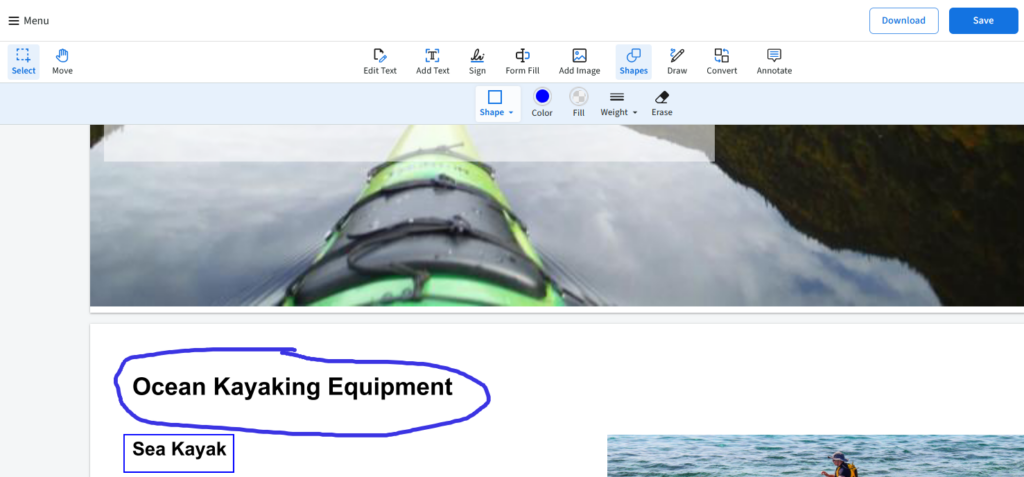
We’ll also point out the Eraser (E) tool, which lets you remove any shapes or drawings that you’ve created.

Consider trying out PDF.Live’s powerful editor tool today to draw on a PDF and more. Select “Start Free Trial” and simplify your PDF workflow.