Resources » PDF Basics »
The PDF file format is one of the best ways to share documents over the internet because it preserves the formatting of your documents. Why email works for PDFs:
- PDF keeps your formatting intact.
- Email lets you attach files, organize messages, and reach almost anyone.
How to attach a PDF:
Look for the paperclip icon when composing an email → browse for your PDF → attach → send. Most of the time, for 1 or 2 small PDFs, this will work fine. But what about larger documents?
When Your PDF Is Too Large
Most email services cap attachments. Gmail’s limit is 25MB, for example. Email services also have data limits that you may hit if you’re sending and receiving too many PDFs. You will have to go through and delete old emails pretty regularly, or set up a system to have older emails automatically removed.
Workarounds for Apple Mail and Gmail Users
Gmail: The simplest way to share files between Gmail users is to upload the file to Google Drive, select Share and enter your recipient’s email address. This works as long as your recipient has a Google account (how to create a Google account).
Apple: Apple users can use Mail Drop, and your recipient can download the files from any device or email provider (Gmail, Outlook, etc.) using the link provided in the email.
Options to reduce file size
1. Compress the PDF
- Shrinks the file without changing the file type.
- Use a PDF compressor if you only need a modest size reduction.
Learn more about how file compression works to reduce the sizes of your documents and folders.
2. Zip the file
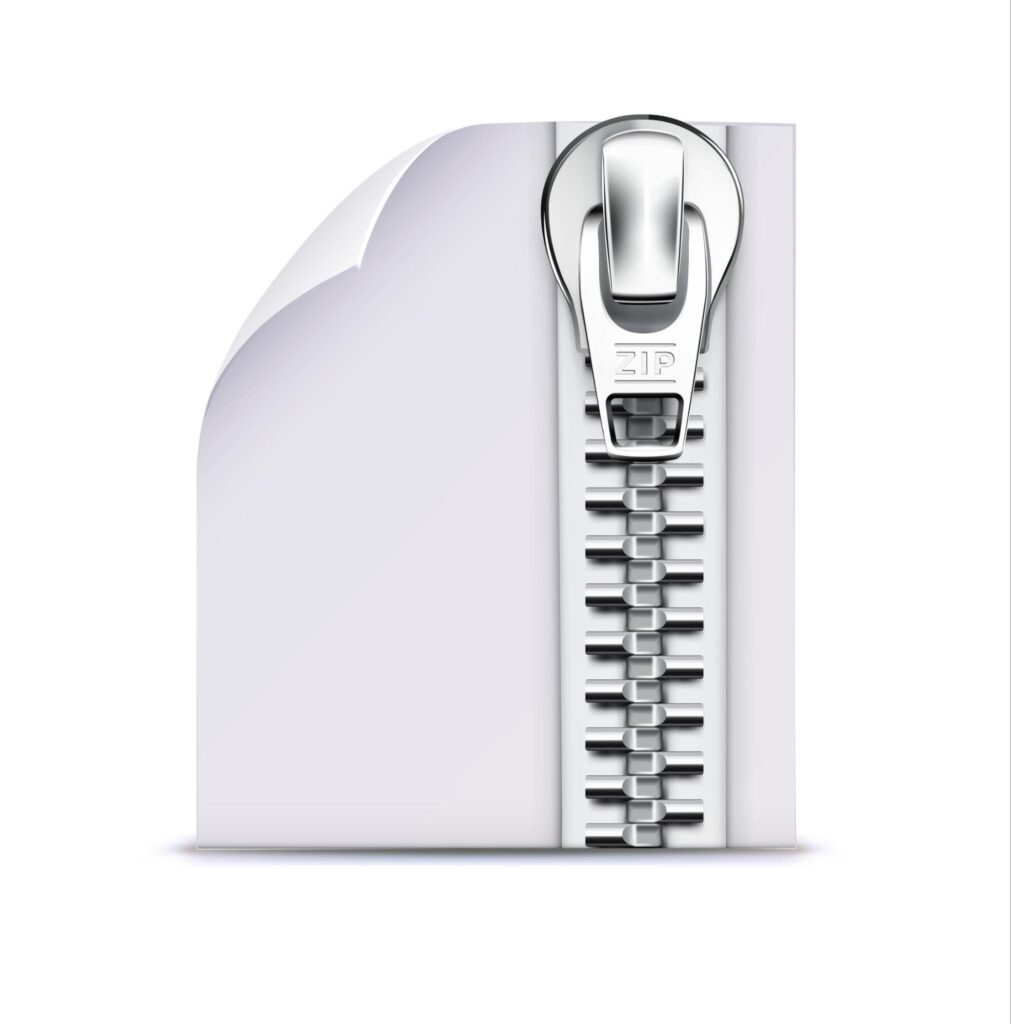
Best for multiple large PDFs, a zipped file is a super-condensed version of larger files, and it could contain one large file or several files that have been highly compressed and changed into a new file format with a .zip extension. The zip file’s icon will have a folder with a zipper on it, and is commonly used for transporting multiple documents or file types in a single folder.
- Create a .zip file containing all your documents.
- Recipient unzips it (double click) to access the original PDFs and other files.
How to unzip files:
- Windows: Right-click → Extract all or open
- Mac: Double-click, or right-click → Open
Attach the compressed or zipped file to your email as usual. Learn how to ZIP up files on both Mac and Windows systems.
Just like PDFs, zip files and compressed files can be uploaded and attached to an email for sending to others. Because both PCs and Macs typically come with installed unzipping capabilities, most recipients will be able to open your zipped file to see your PDFs.
How to Email One Page of a PDF
If you only want to send a single page or section, you’ll first need to extract that single page from a PDF. This can be done either with PDF.Live or a web browser:
Option A: Using PDF.live Editor
- Open your PDF in the editor.
- Go to Print → choose Pages → enter the page number(s).
- Select Save as PDF as the destination.
- Save the new file (desktop is easiest if you’re about to email it).
- Attach it to your email.
Option B: Using Your Browser
- Drag the PDF into your browser.
- Open browser menu → Print.
- Choose Save as PDF.
- Enter the page number(s).
- Save and attach.
Once you have your single page separated from your PDF, you can then attach it to an email the same as you would any other PDF.
Can You Embed a PDF in an Email?
Gmail: Not directly
Gmail doesn’t support PDF embedding, but it does support images. Because PDFs are similar to images, you can convert a PDF to an image with minimal impact on the formatting. We recommend first splitting the PDF into a single page that you want to share via email for the cleanest formatting.
Workaround:
It’s important to note that converting a PDF to a JPEG works only for a single page. JPEGs do not support multi-page formats. So, this workaround is ideal if you want to embed a one- or two-page PDF.
- Convert the PDF to a JPEG.
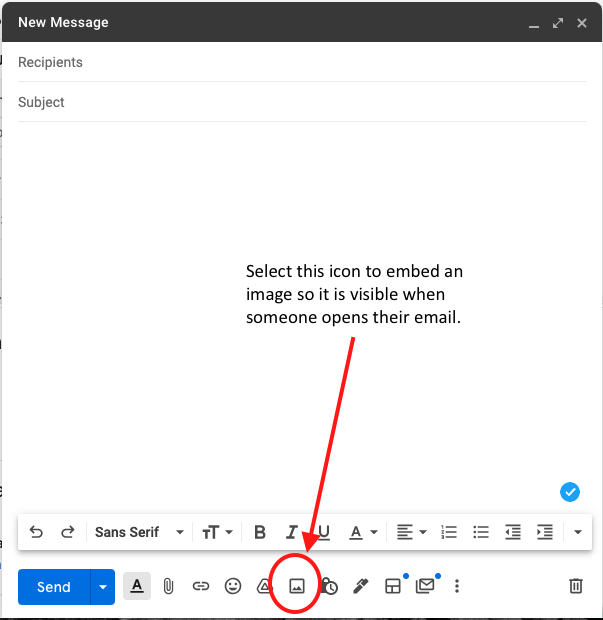
- In Gmail, choose Insert Photo (mountain icon).
- Pick your JPEG to display it directly in the email body.
Great for:
- Invitations
- Simple one-page flyers
- Holiday cards
For larger, multi-page PDFs, just attach the PDF to the email instead.
Outlook: Yes, with limitations
The email manager Outlook lets you insert a PDF as an Object (mostly works for single-page PDFs).
How:
- New email → Insert → Object.
- Select Create from File.
- Choose your PDF → OK.
If the embed doesn’t look right, just attach the PDF normally. Outlook does actually allow you to view PDFs through the program, so there’s a chance you don’t need to embed the PDF in your email body.
Other Ways to Share PDFs
Cloud storage (Google Drive, OneDrive, Dropbox)
Good for:
- Larger PDFs
- Files that multiple people need to access
- Links instead of attachments
- Having updates made later on apply to the shared version of the PDF
Facebook Messenger
- On desktop: tap the + → use the paperclip to attach a PDF.
- Works for sharing event flyers or invitations.
Sending PDFs from Your Phone
iPhone
- Find the PDF on your phone.
- Press and hold → Share.
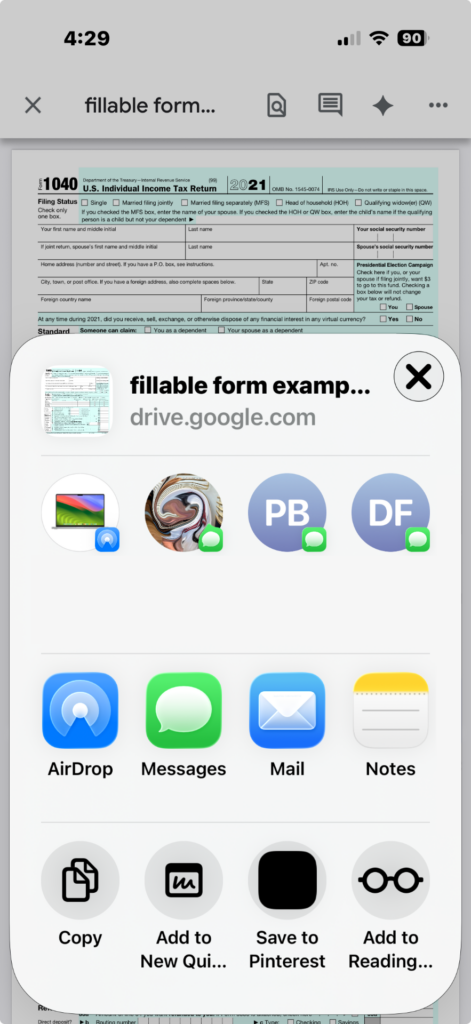
- Pick an app (AirDrop, Messages, Mail) or person.
- Send.
Android
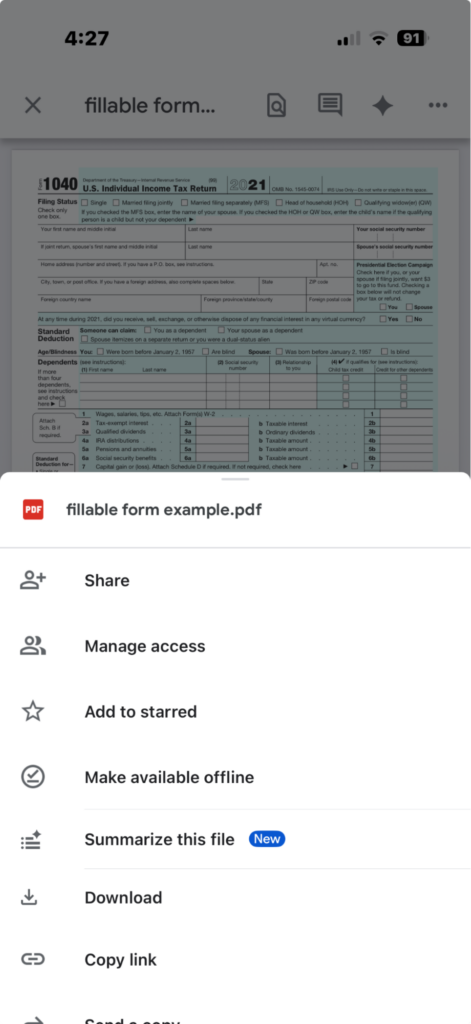
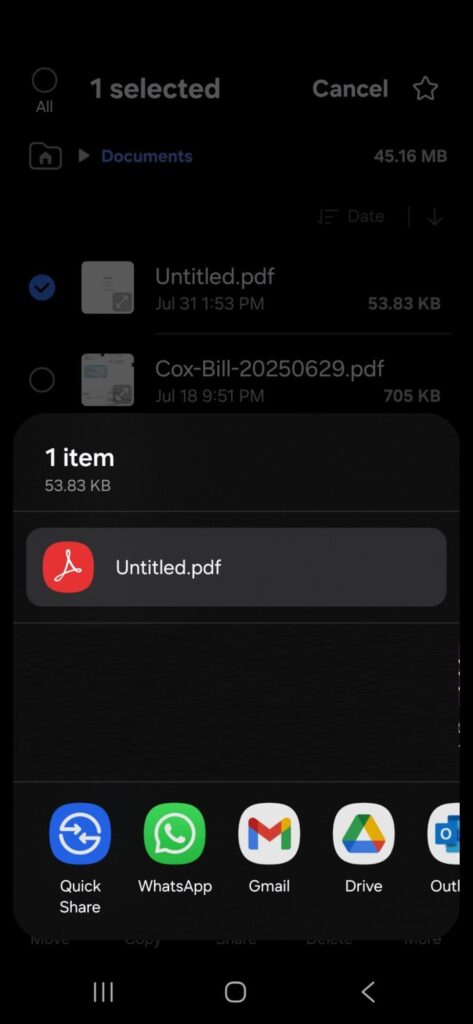
- Open the PDF on Android
- Tap Share in the top bar.
- Choose your app, like messenger or Gmail.
- Tap Share again.