

Resources » PDF Basics »
Computer, Tablet, or Smartphone — What to Know About Opening PDFs
There are more ways to open a PDF than most people realize — and the right one depends on your device, what you want to do with the file, and whether you already have the right software. This guide covers what a PDF actually is, how to open one on any device, and what to do when a PDF refuses to open.
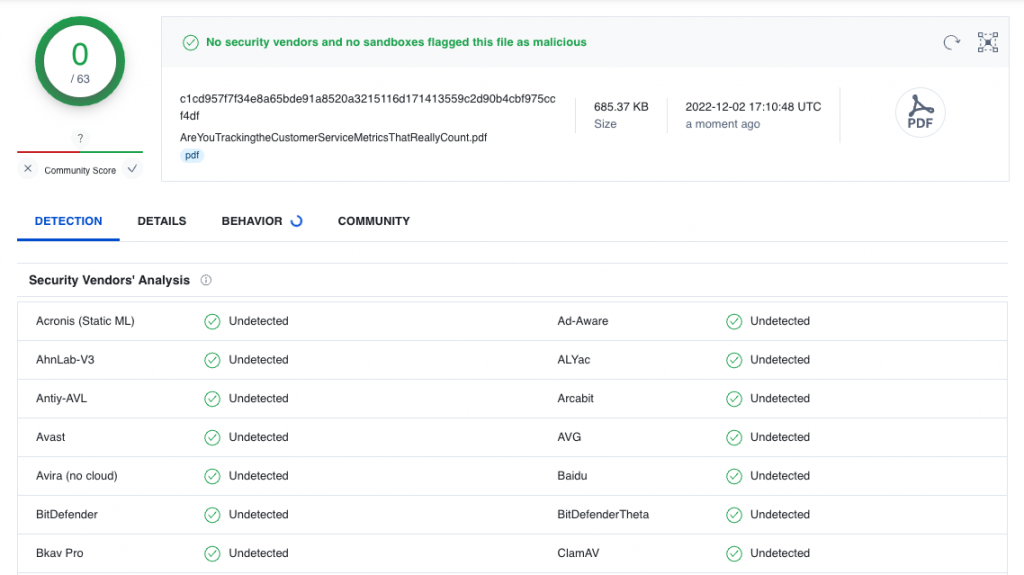
One thing before you start: Make sure the PDF you’re about to open comes from a source you trust. If you’re not sure, VirusTotal is a free web-based tool that’s owned by Google Security Operations. It scans files against 70+ antivirus engines. Just upload the file and check the results before you open it.
Some PDF Basics, First
What is a PDF? PDF stands for portable document format. It’s a file type designed specifically for sharing. Once a document is saved as a PDF, its formatting stays locked in place no matter where it’s opened or what device it’s viewed on. The person receiving it sees exactly what you intended.
PDFs are also flexible in another way: A wide range of apps and programs can open them, which makes them one of the most reliable formats for sharing information across the web.
Want to learn more? Check out our article on What Is a PDF.
How to Open a PDF
Start by locating the file in your device’s file manager or downloads folder. On most devices, double-tapping or double-clicking it will open it automatically in whatever program is set as your default PDF viewer. If you haven’t set one yet, your device will ask you to choose.
The sections below cover how this works on each type of device.
Windows PC
On Windows, your web browser is the easiest option, no extra software needed. Just double-click the PDF in File Explorer, and it’ll open in your default browser (Edge, Chrome, or Firefox all handle PDFs natively). You can also right-click the file, select Open with, and choose the browser you prefer.
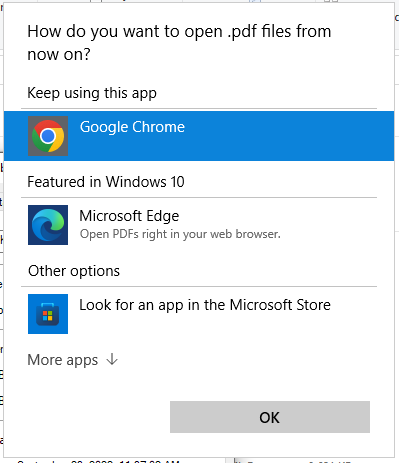
If you want extra features like annotation, form-filling, or document management, you’ll want either a dedicated PDF editor or to use Chrome, Edge or Firefox, which can annotate PDFs. See our guide to the best PDF readers for Windows.
Apple Mac
Mac computers come with Preview installed, which is a capable PDF viewer and light editor built right into macOS. Double-clicking any PDF should open it in Preview automatically. You can also right-click and choose Open With to use a different app.
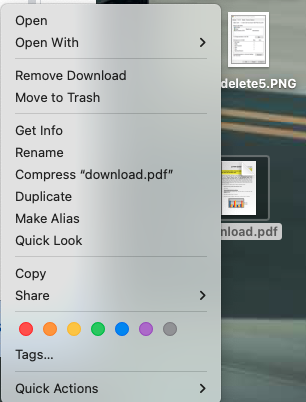
For more options, check out our roundup of the best ways to read PDFs on Apple devices.
Android Phone or Tablet
On Android, head to your Files or Downloads app and tap the PDF. You’ll be prompted to pick an app to open it with. If you haven’t installed a PDF reader yet, your browser can handle basic viewing.
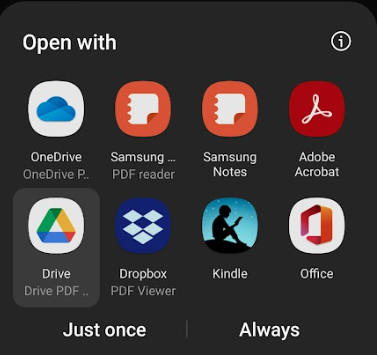
Need recommendations? We’ve put together a list of good PDF viewers for Android.
PDF Opener Online (No App Required)
If you can’t find the file on your device, or you just want a quick way to view and edit PDFs without installing anything, you have two good options. You can upload the file to cloud storage like Google Drive, Dropbox, or OneDrive and open it from there.

Or, you can use PDF.Live’s online editor — drag in your file and you’re ready to read, annotate, or edit, all in your browser.
PDF Won’t Open — Now What?
A PDF that won’t open usually comes down to one of a few things. Here’s how to work through them.
The PDF Is Password Protected
If the creator locked the PDF, you’ll need the password to open it. If you’re the one who locked it and forgot the password, or if you need to adjust access settings, check out our guide on locking and unlocking PDFs. If someone else sent you a protected file, reach out to them for the password.
The File Didn’t Download Correctly
Try re-downloading the PDF from wherever you got it. Incomplete downloads can corrupt a file. Once it’s re-downloaded, try opening it again.
The App Needs an Update
An outdated PDF viewer can sometimes fail to open newer files. Update or reinstall the app you’re using, then try again. On Windows, you can also right-click the app, select Properties, go to Compatibility, and try running it in compatibility mode.
The Original File Has an Issue
If you created the PDF yourself, try going back to the original document (Word, PowerPoint, etc.) and re-exporting it as a PDF. If someone else made it, ask them to re-send the file. There may have been a problem on their end when it was created.
The File May Be Malicious
If a PDF arrives unexpectedly from someone you don’t know, it’s worth being cautious. Run it through an app such as VirusTotal before opening it. Don’t open a file if it is flagged.