Resources » Faxing PDFs »
PDF.Live’s PDF management tools include online faxing capabilities for easy digital faxing without the need for a fax machine or scanner. This online fax service uses Fax over Internet Protocol (FoIP), which sends documents over an internet service rather than a phone line. Combine this with PDF.Live’s PDF conversion and editing tools and you’ve got a one-stop shop for editing and sharing PDF files.
Your fax recipient won’t notice any difference with your document when you fax online!
In this guide, we’ll walk you through online faxing with PDF.Live. This includes what you need to get started and how to use our online faxing. It works entirely through your web browser, so no software, apps, or downloads are required.
Step 1: Prepare Your Document
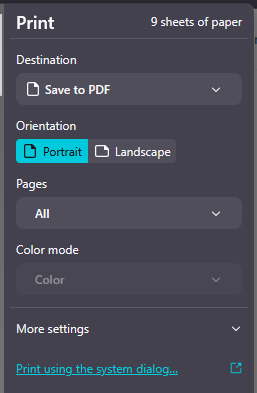
Before you fax, ensure that the document you want to transmit is a PDF. PDF.Live works only with PDFs, so you’ll need to convert it with: Word to PDF, Excel to PDF, or PowerPoint to PDF. Otherwise, in your document editor of choice, save a copy of your document as a PDF or select Print and choose Save to PDF.
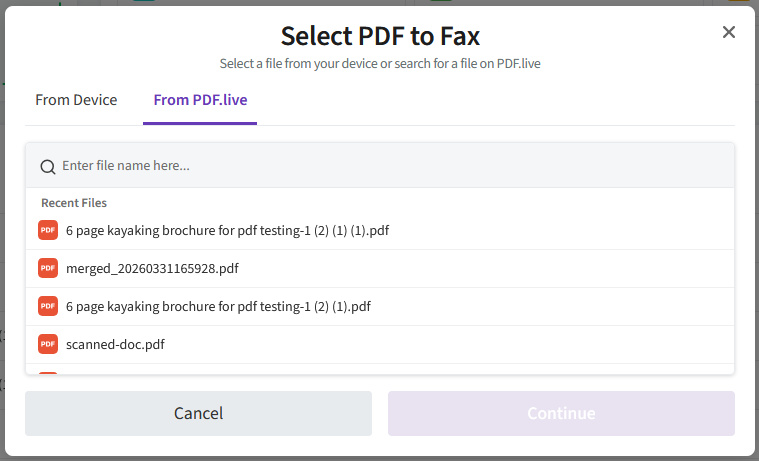
If you’ve used PDF.Live before to edit documents, you can fax any document saved in your PDF.Live Studio dashboard instead of uploading a new PDF. This streamlines your workflow, as you can make simple edits, sign, or split the pages of a PDF using the PDF.Live studio and then fax the new document you’ve created.
Here are a few additional tips for faxing documents:
- Be aware of how many pages are in your document. More pages take longer to fax and use up more fax page credits
- To speed up transmission time, reduce the number of pages if possible, or remove images, as pictures use more data and will increase fax transmission time
- Make sure you have your recipient’s fax number, and not their telephone number. Both are the same format (555) 555-0123. This post from Fax.Live explains how to test a fax line.
- It’s ok if your recipient does not use a digital fax service. Digital fax services transmit documents to analog fax machines and vice-versa.
Step 2: Create an Account
Create a PDF.Live account or log in to your existing PDF.Live account to fax. You can also create a PDF.Live account using your Google account.
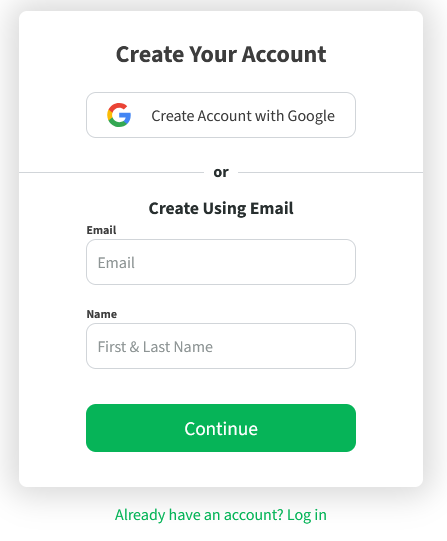
A PDF.Live account gives you a personal dashboard where your documents, sent faxes, and received faxes are stored securely in one place. It also helps us protect our faxing service from misuse, so you get a reliable experience every time.
Our PDF faxing service is included in your PDF.Live subscription. It comes at no additional cost to you, and you can send or receive 100 pages per month. Additional credits can be purchased for super users.
Step 3: Upload Your File
Head over to our PDF.Live Studio, select Fax, and drag and drop your PDF into the online tool to upload it for faxing.
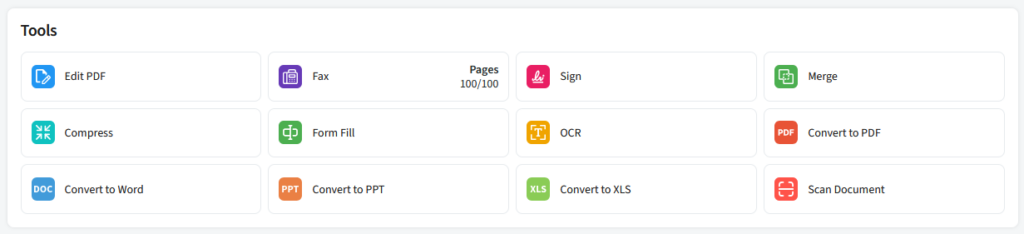
Drag and drop your PDF.
Or, select a PDF that you’ve edited and saved to your Studio dashboard.
Step 4: Enter Your Recipient’s Fax Information
Upon uploading your PDF, you’ll see a preview of the document displayed alongside the Fax Details tab. Enter your recipient’s fax number, which is required for transmitting faxes.
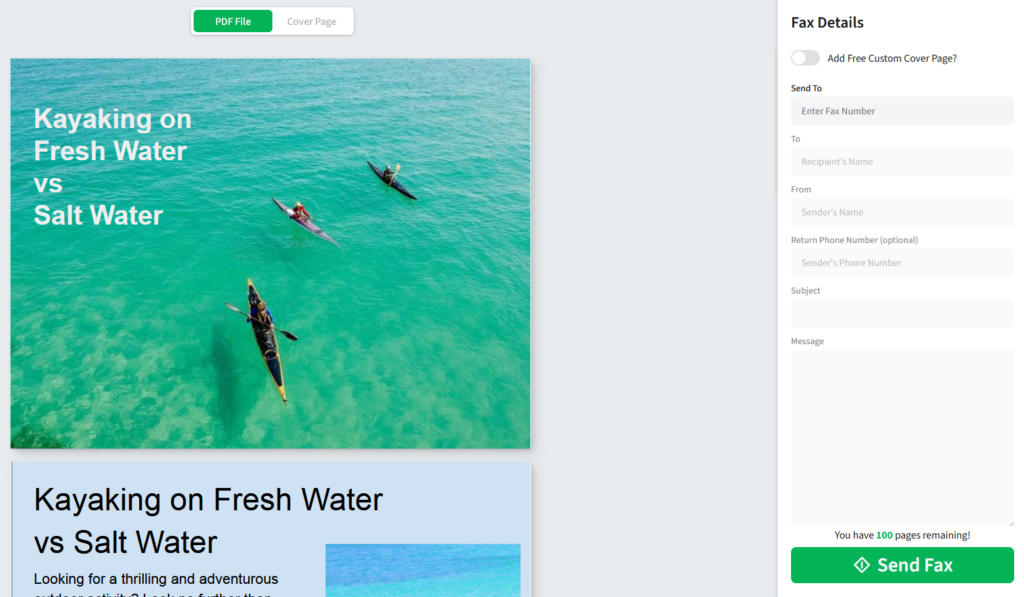
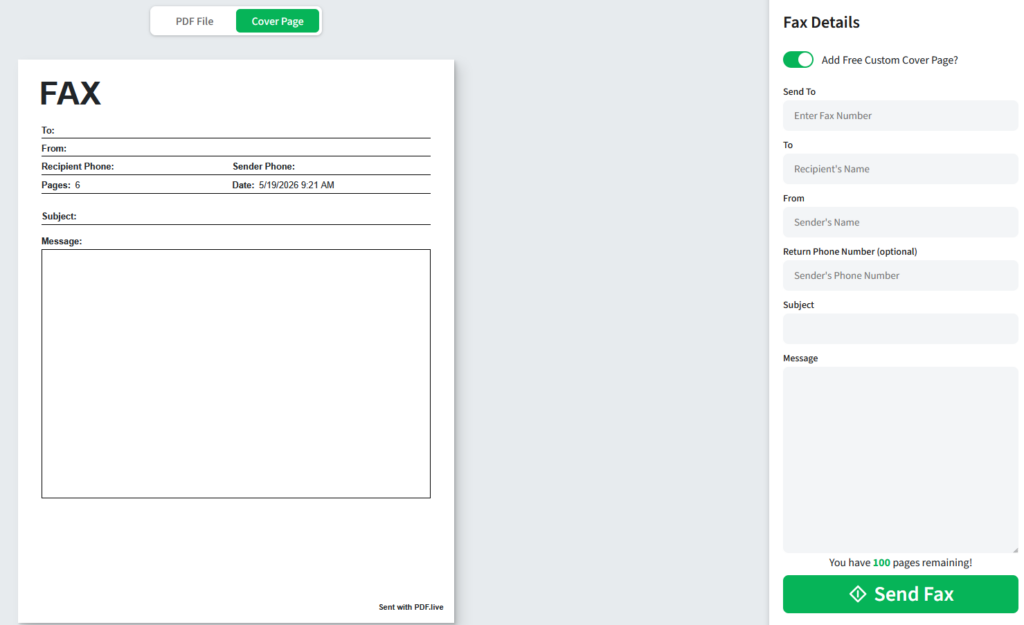
You can also toggle the option to add a free cover page, which inserts an extra page in front of your document to help direct the fax to the right recipient. It’s also beneficial to your recipient, as they’ll be able to more easily identify who’s sending them a document and why. Cover pages are not required to send a fax.
Step 5: Send Your Fax
Click Send Fax to begin faxing your document. Faxing can be slow, especially if you have a lot of images or pages in your document. Keep the fax window open in your web browser, as closing it may result in an error.
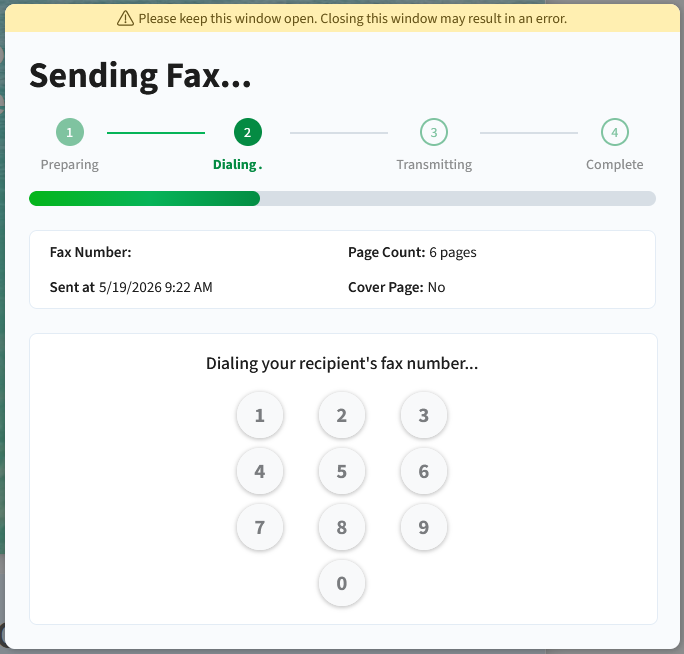
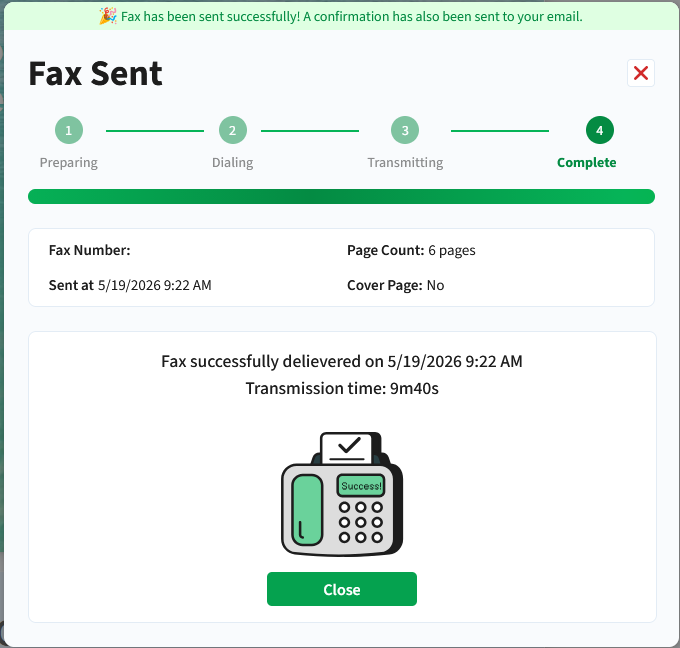
The status of your fax will be displayed in this window. Faxing online usually takes a few minutes, and we’ll notify you via email when your fax has been successfully transmitted.