

Resources » Working With PDFs »
It’s typical for banks to export your statements as PDFs, although many modern banks offer the ability to download financial information as CSV files. If your financial institution doesn’t allow you to download CSV files — or you’re working with older records — you’d need to convert PDFs into Excel spreadsheets. This tutorial will show you how to convert bank statements to Microsoft Excel spreadsheets using PDF.Live. We’ll walk through converting a bank statement PDF to an XLSX file using our PDF to Excel converter. It’s free to try, so you can see how it works with your bank statements.
Convert Bank Statement From PDF to Excel
1. Head over to PDF.Live’s PDF to Excel converter. Drag and drop your bank statement into the converter to get started.

When your document is ready, you’ll see the message, “Upload Successful — Ready to convert!”
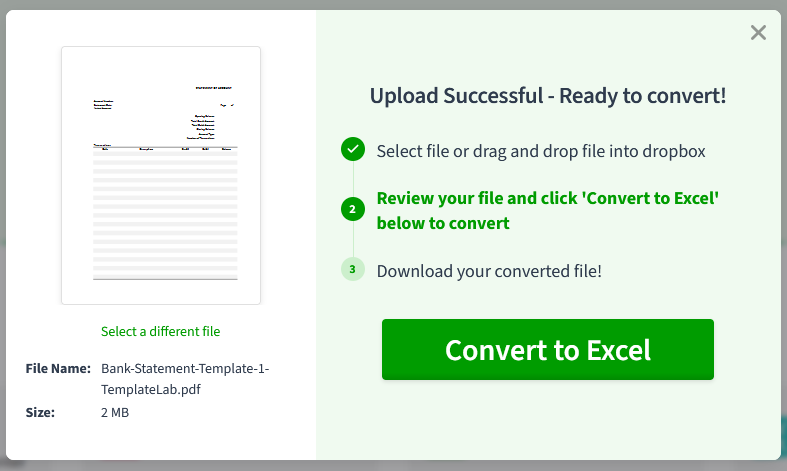
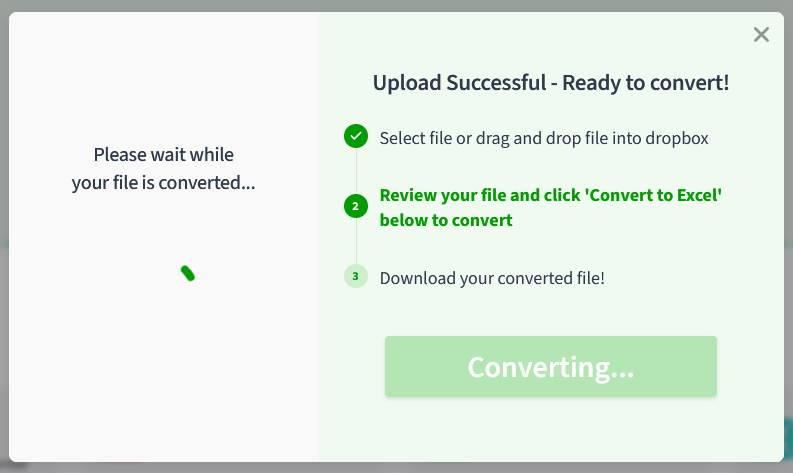
2. Click Convert to Excel. Your bank statement should be converted in under a minute, depending on the file size and your internet connection.
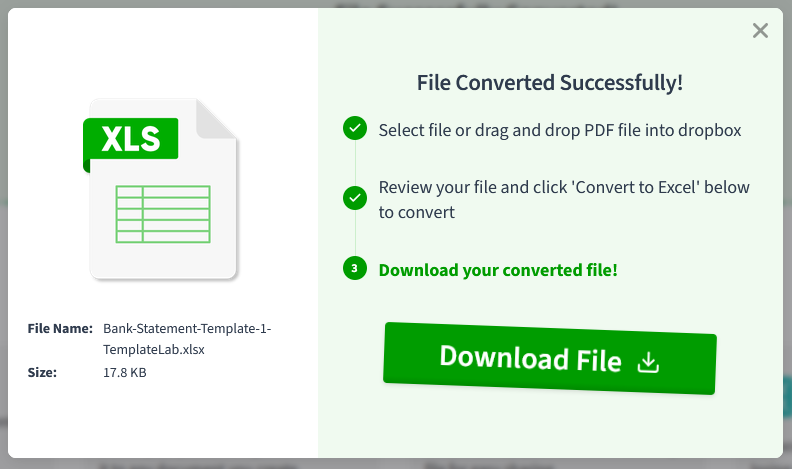
3. Click Download file to download your Excel spreadsheet.
You will need to create a PDF.Live account to download your converted bank statement.
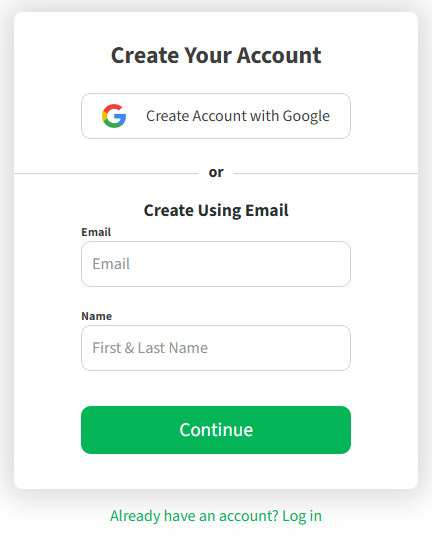
Why do we ask you to create an account? Creating an account gives you access to PDF.Live’s full suite of tools during your free trial. It also saves your converted files to your PDF.Live dashboard, so you can come back and download them later instead of starting over.
4. Open the converted bank statement* in a spreadsheet viewer like Microsoft Excel or Google Sheets. Let’s see how it turned out:
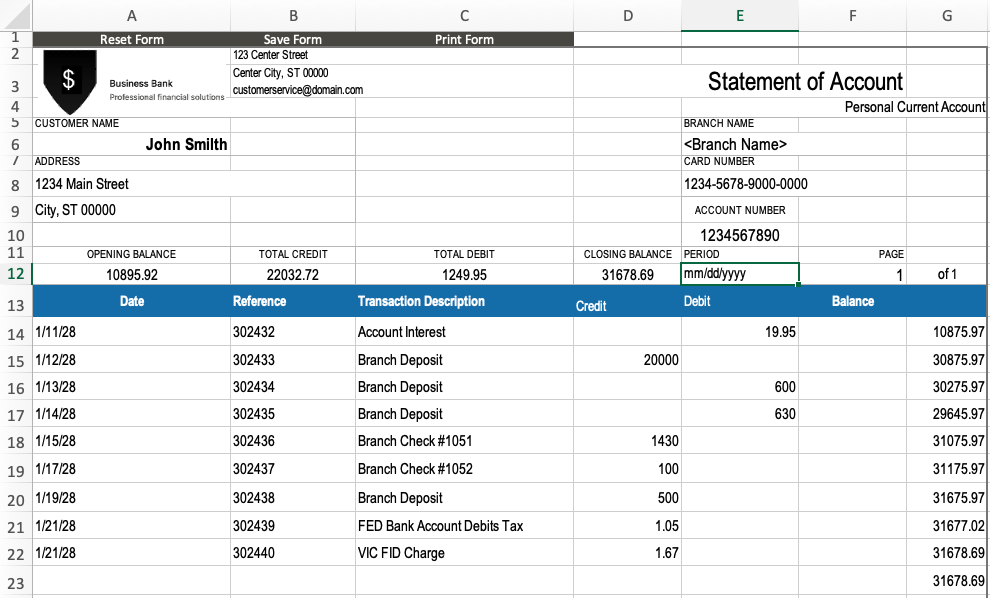
The PDF-to-Excel converter did a good job at converting our sample statement to a spreadsheet! Although you may not need the header information with the bank name and statement information, the converter transferred it anyway. You can delete unwanted information, such as the bank’s logo, address and headers when you open it in your spreadsheet program (Excel or Google Sheets).
How to Convert PDF Bank Statement to CSV
1. First, follow the above steps to convert your PDF bank statement to an Excel file. Then, open the spreadsheet in Excel or Google Sheets.
2. In your spreadsheet program, select File and then Download. Select Comma Separated Values (.CSV) from the list of options.
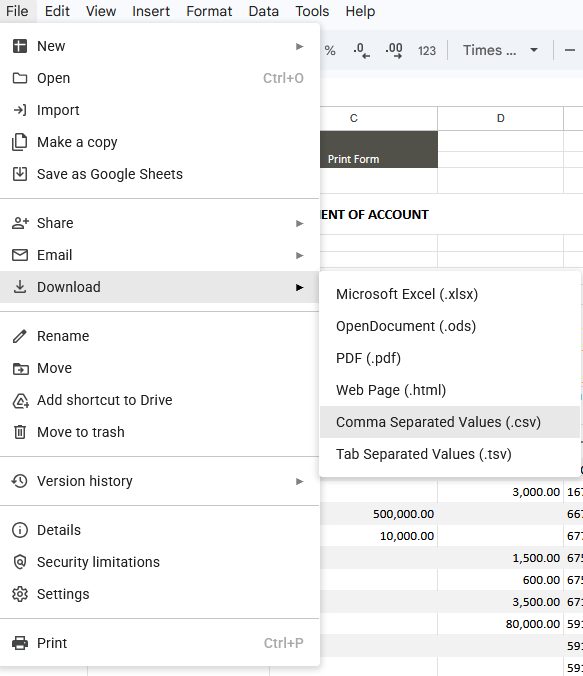
3. You will now have a CSV version of your PDF bank statement! You may want to rename it, though, as the name may have gotten messy from all of the conversions.

Frequently Asked Questions About Bank Statement-to-Excel Conversions
Can I convert multiple bank statements into Microsoft Excel sheets?
Yes, you can convert multiple bank statements to a single spreadsheet. There are two different ways to go about this:
- Merge your bank statement PDFs into a single PDF. Then, convert the single large PDF to Excel.
- Convert your bank statements individually using our PDF-to-Excel conversion tool. Then, copy the necessary cells into a new Excel spreadsheet or tab.
Can I download my bank statements to Excel?
Yes, some online banking services allow you to download bank statements as Excel spreadsheets instead of PDFs. Check your bank’s website for a section like “My Documents” or “Statements.” Many banks offer options for preferred download formats — PDF, CSV or XLSX being the most common. Our bank-statement-to-Excel conversion option is a good backup plan if your bank’s option isn’t working or doesn’t offer CSV or XLSX downloads.
How do I convert Excel spreadsheets to PDFs?
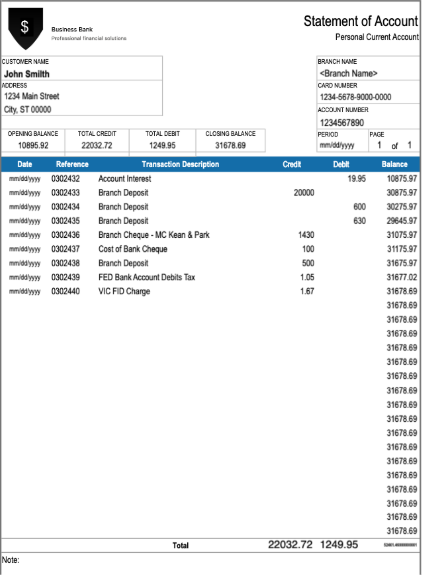
If you want to convert Excel spreadsheets back to a PDF, you can use PDF.Live’s Excel to PDF tool. Here’s an Excel document we converted back to a PDF using the conversion tool:
How do I convert a bank statement to a Google Sheet?
Use PDF.Live’s PDF to Excel conversion tool, download the XLSX file, then from Google Drive, select New >> File Upload >> select the file on your device and click Open. When Google Drive signals “upload complete,” double click to open the XLSX file. Select Open with Google Sheets. Google easily converts any Excel file to Sheets.

*Source for the bank statement example: TemplateLab.