Resources » PDF Basics »
Rotate PDF Files or a Single Page
How do you permanently rotate PDF pages? If you need to change the orientation of one page in a PDF, several pages, or an entire PDF file you can do that easily with this online tool. Our tutorial shows you how to rotate and save PDF documents that way.
Rotating pages on a PDF is useful if you have single or multiple pages on a document that need to be displayed in a different orientation. Your PDF may be mostly in portrait, for example, and you need a few pages to be displayed horizontally in landscape. You can rotate one or multiple pages of your choice using the online PDF.Live editor. This editor functions entirely in your browser — no additional downloads are required.
Rotating PDF Pages with PDF.Live
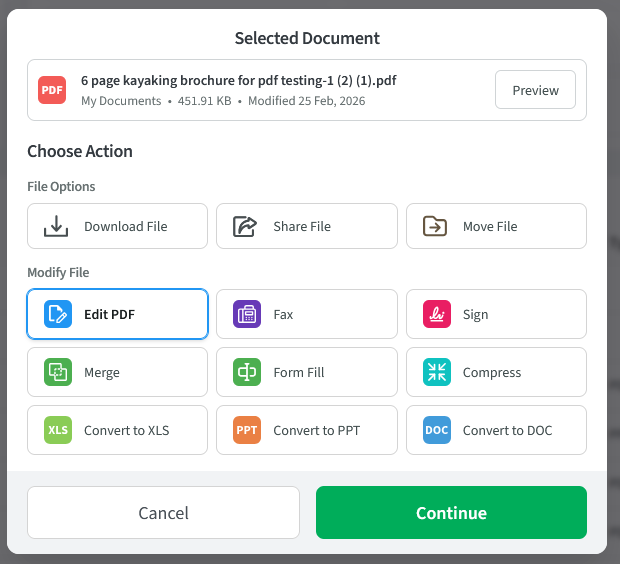
First, drag and drop your PDF into the PDF.Live editor to upload it and select Edit PDF and Continue to start editing.
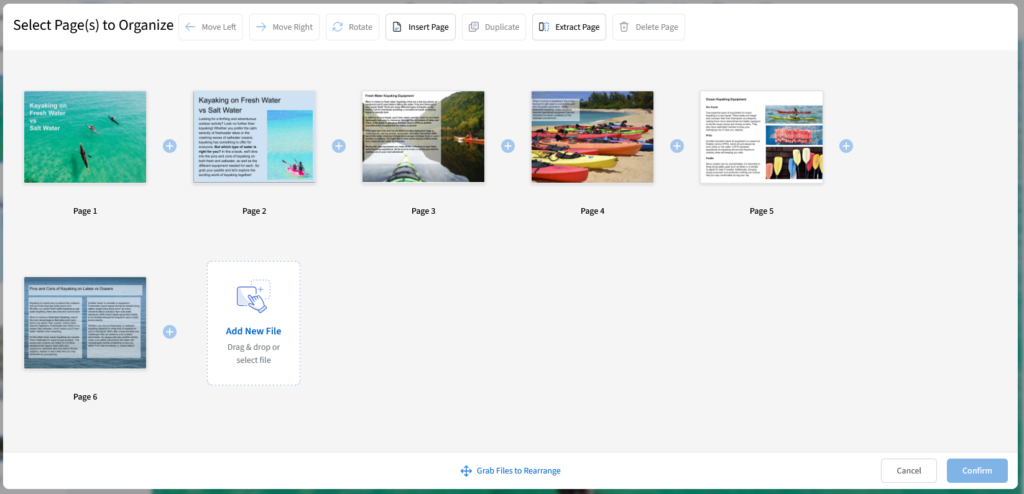
Once your PDF is displayed in the editor, select the Manage pages icon on the left side of the PDF.Live editor. This will show the pages of your PDF in thumbnail view, which is a condensed version that’s easier for editing pages.
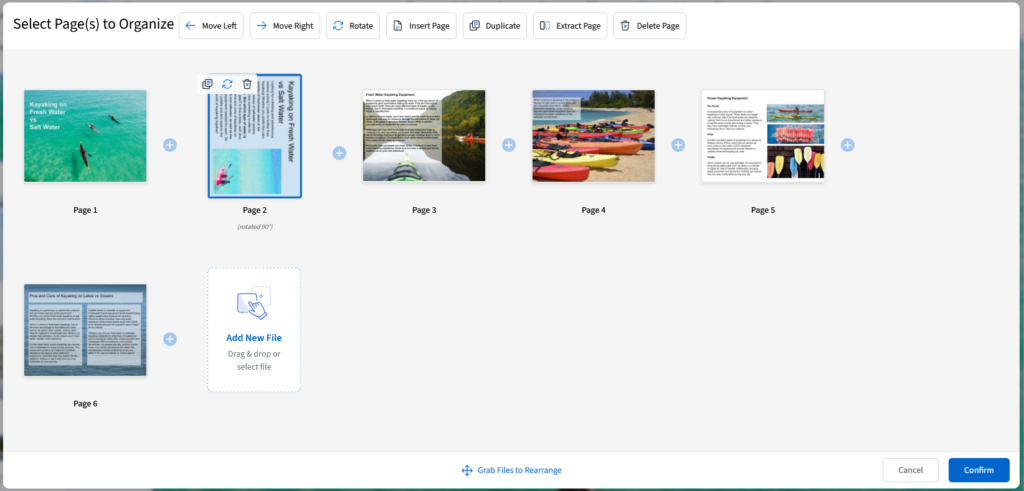
From here, you can click on a page within your PDF that you want to rotate. At the top of the page manager, you’ll see a few different buttons for managing your pages. We want the Rotate button. With the page you want to rotate selected, click the rotate button.

You’ll see the rotation reflected in the thumbnail view. Once you’re happy with how the page is oriented, select Confirm to have your changes applied in the editor view.
You can also quickly rotate a selected page by clicking the two circular arrow icons with a page selected.
After you’ve rotated all the pages you need, you’ll need to Confirm your changes with the page manager and then download a new version of the PDF from the editor to see your changes reflected. This new version will contain the rotations and any other changes you’ve made.
Other PDF readers, such as Apple’s Preview app, will allow you to rotate pages and make other edits. Readers are separate applications that are downloaded on your computer, however, and won’t allow you to make changes in your web browser.
How do you rotate all pages in a PDF? From the PDF.Live Studio, select Manage pages in the upper left, and from the thumbnail view, select each page and rotate it.